
In shipping, making sure every package carries a correct, readable and barcoded label reduces loading errors and improves traceability. Smartifie Logistic App's Print Label screen produces print-ready PDF labels for the order lines you choose in just a few clicks.
The steps below cover the whole flow, from finding an order to exporting the barcoded PDF.
1. Open the Print Label screen
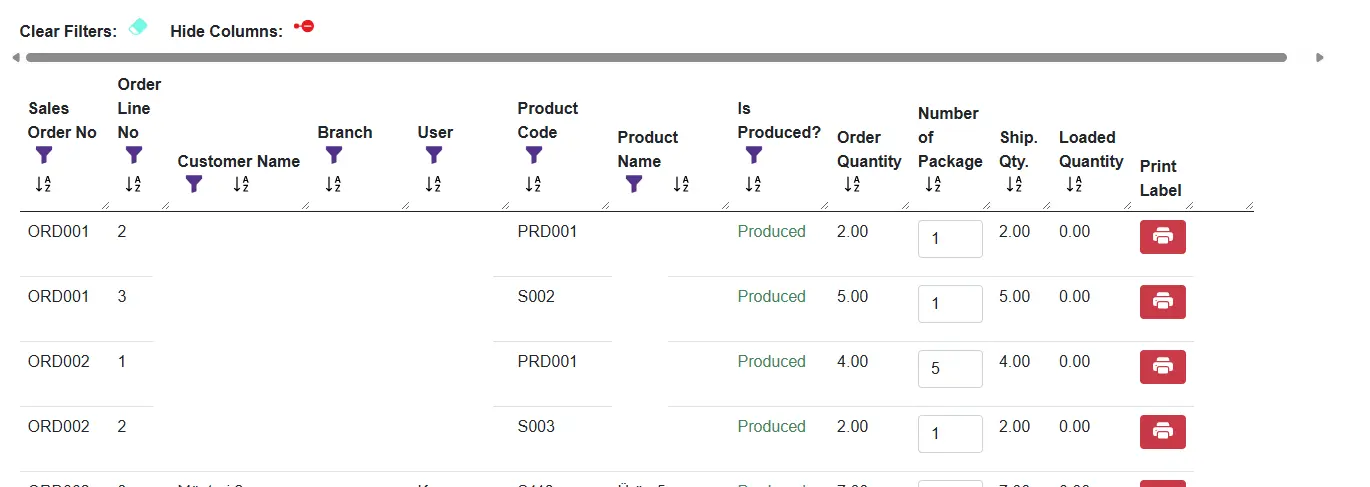
When you open the Print Label page from the menu, the order list appears. Each row is an order line and shows the order number, line, customer, branch, user, product code/name, production status, plus order, package, shipment and loaded quantities.
2. Filter to the right order
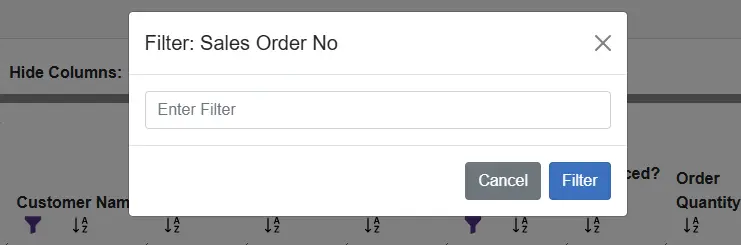
To quickly find a line in long lists, click the funnel icon in a column header and type the value into the Filter dialog. Sort arrows in the headers let you order the list ascending/descending, and the eraser icon on the left clears all filters. You can hide unused columns with Hide Columns to simplify the view.
3. Set the package count
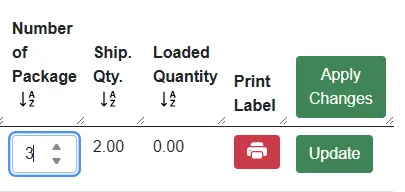
The number of labels depends on the package count. Enter the correct value in the Package Count box. When you change a row, a green Update button appears on it; click it to save that single row. If you changed several rows, the Apply Changes button in the header saves them all at once — the system first shows a confirmation dialog.
4. Print the label and export the PDF
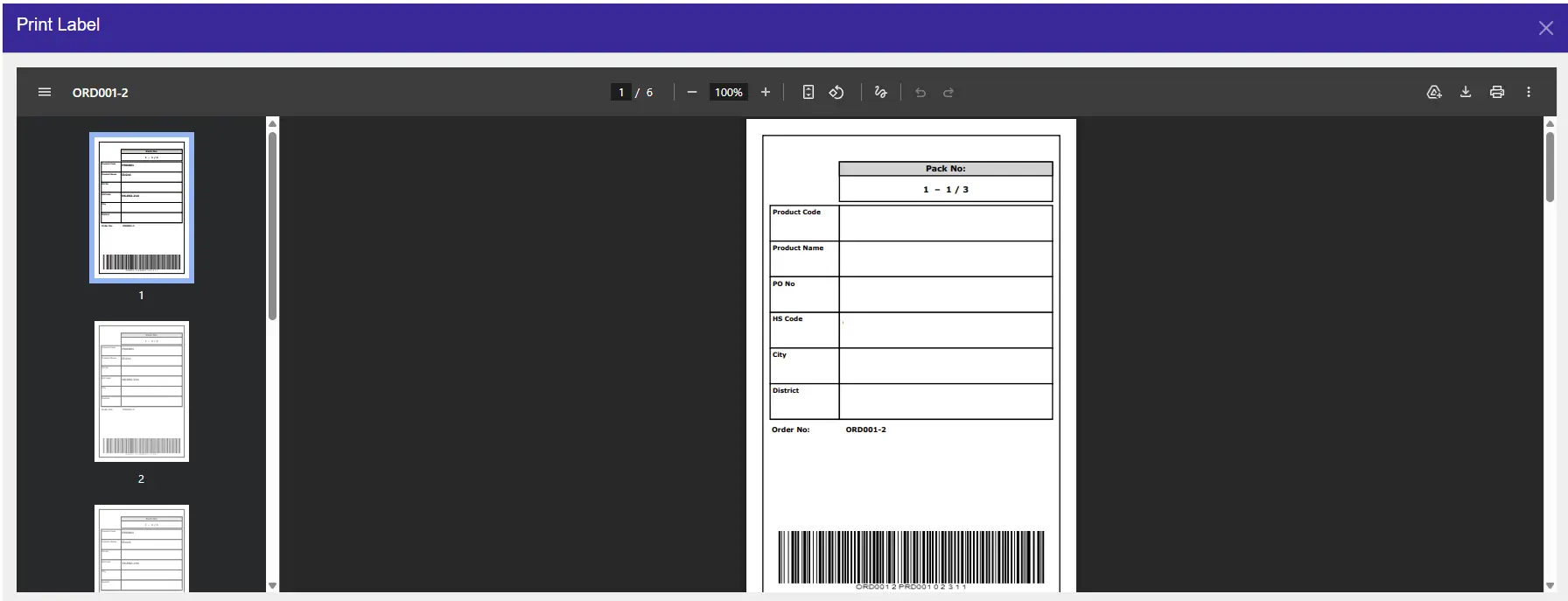
Click the red printer button on the relevant row. Smartifie Logistic App multiplies the order quantity by the package count to calculate how many labels are needed, and generates a separate barcode for each package. The barcode carries the order number, line, product code, configuration code, quantity, package count, package sequence and quantity sequence — so every label is unique.
Once the labels are ready, a PDF preview window opens on screen. Each label page shows the Package No, Product Code, Product Name, PO No, HS Code, City, District and Order No fields, with the barcode at the bottom. From this window you can print the labels directly or download them as a PDF.
Tip: Customize the label template
The label size and layout are configured for your company on the Label Settings page. Before printing, make sure your settings match your printer and the label stock you use.
Want to try Smartifie Logistic App?
Smartifie Logistic App brings shipping operations such as order tracking, barcode scanning, packing lists and label printing together in a single app.