
You have decided to track downtime, and now you need the list operators will pick from. The obvious move is to copy a long “standard downtime reason codes” list from the internet. Most of those lists are written for large systems that read signals from the machine, and in a small shop they leave two questions open: is a changeover planned downtime, or lost time? And where does the operator put a stop that is not on the list? Sources disagree on the first, and few talk about the second at all. This article gives the person building the list a set of decision rules and an example list sized for a small shop.
The short answer: a good downtime reason list is short enough for an operator to pick from in seconds and clear enough for the office to act on. Every reason belongs to one category; every reason answers “is it planned?” and “does it cost machine time?” separately, once; a reason the operator types in is sorted, not thrown away; and a reason you stop using is retired, not deleted.
The list serves two people: the operator who picks and the office that decides
A downtime reason list has two users, and they want different things. The operator picks a reason when the machine stops; their mind is on the machine, not on scrolling through a long list. The office looks at the same list at the end of the week and asks “what do we fix?”. If the list is too long, the operator picks the first thing that roughly fits and the office looks at the wrong picture. If it is too short, everything goes to “Other” and the office sees nothing. A good list sits between those two ends.
For the list to be any use, the stop has to show up in the record in the first place; we covered that under stops on a labor ticket. How the operator picks the reason at the terminal, at the moment of the stop, is in our downtime Pareto article. This article is about the piece in between: the list itself.
How many reason codes, and what to call them
There is no fixed right number of reason codes; it varies from shop to shop. Two tests set the number. First: the operator should find the reason without searching for it. If they have to scroll or read through the list, it is too long. Second: every reason should lead to a different action. If two reasons send the same person to do the same job, there is no point keeping them apart; merge them. “Bearing failure” and “motor failure” stay separate if they mean different work for maintenance; if both end in the same call, one “Breakdown” is enough and the detail goes in the maintenance record.
Three naming rules help. The name describes the event, not a person to blame: “No operator” is a fine reason name; a reason that names somebody is not, and nobody fills in a list honestly when it points fingers. Each name has one meaning: “Waiting” on its own is vague; “No raw material” and “Waiting for inspection” are not. Use the shop's own words: if everyone says “changeover”, the list says changeover. Finally, the code stays fixed while the name can change. Past stops are tied to the reason's code; fixing the name later does not disturb the history, changing the code would.
That is how Smartifie Start Stop works too: a reason's code is typed only when the reason is first saved and is locked after that; its name can be corrected at any time.
Categories: group reasons by who will fix them
A category tells you whose desk a reason lands on. A practical split: Machine reasons go to maintenance, Material reasons to scheduling or the stockroom, Quality reasons to whoever owns quality, Personnel reasons to the production supervisor, and Planned stops are a matter for the calendar, not a repair. The rule is simple: each reason sits in exactly one category. If a reason fits two categories, either its name is vague or it is really two different reasons.
Adding a category of your own to the ready-made ones is normal. Waiting for a forklift, waiting for the crane or a late internal move is not a machine breakdown, and it is not a material shortage either; it belongs to internal logistics. If those stops happen often, giving them their own category makes their owner visible.
Smartifie Start Stop starts every account with seven categories: Planned, Machine, Material, Quality, Personnel, Other, and System, which the product uses for itself. You add your own with “New category”; a lower “Display order” comes first. At the terminal, the full reason list is grouped under category headings, and the terminal search looks through category names too: when the operator types “logistics”, the reasons in that category come up. One detail to keep in mind: reasons in the Quality category are the ones offered as scrap reasons when scrap is entered at the end of a job, so think twice before moving a quality reason to another category. For the stop reasons screen, step by step, see the guide.
You can watch how the list, a category of your own and the two flags on every reason are set up in a few minutes in the video below. The reasons, categories and the two reasons typed at the terminal in it are fictional test data.
Watch how it works
Real screens, start to finish.

Downtime Reason Codes: Set Up Your List | Smartifie Start Stop
How to set up your downtime reason codes in Smartifie Start Stop: categories, the reasons operators type at the shop-floor terminal, and which stops are planned or count as lost machine time.
The video loads from YouTube when you press play.
The app in the video is Smartifie Start Stop, a shop-floor app that asks for the stop reason at the terminal.
Planned, or lost machine time? Two separate questions on every reason
Anyone building a downtime list gets stuck on the same question at some point: is a changeover planned downtime? Should breaks count as downtime? Sources do not agree; some count a changeover as lost time, others take it out of planned production time. Most of the argument comes from asking two separate questions as if they were one.
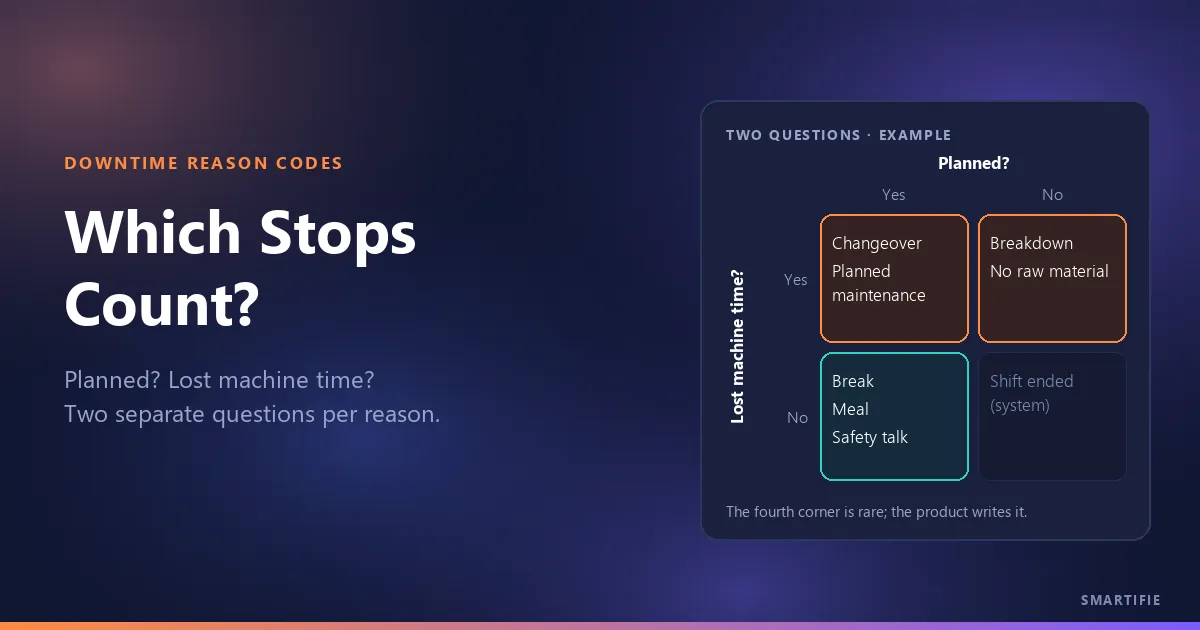
The planned question: did we know about it in advance? A stop that is on the calendar, with a known time, is planned. The lost-time question: could the machine have been running? If it could have run and did not, that time is lost to the machine. A changeover is planned and still costs machine time; a lunch break is planned and costs nothing. Ask the two questions separately and the contradiction goes away.
The common definition of OEE (overall equipment effectiveness) makes the same split: planned production time leaves out time when production was never intended, typically breaks, while planned stops such as changeovers count as stop time and are treated as availability loss. It is not the only definition, and some shops do it differently. What matters is this: write your definition down once and apply it the same way on every line. If a changeover is lost time on one line and not on the next, the two lines' numbers cannot be compared.
Two questions, six examples
| Stop | Planned? | Lost machine time? |
|---|---|---|
| Lunch break | Yes | No |
| Weekly safety talk | Yes | No |
| Changeover / set-up | Yes | Yes |
| Planned maintenance | Yes | Yes |
| Breakdown | No | Yes |
| No raw material | No | Yes |
The fourth corner, a stop that is unplanned but costs no machine time, is rare. An example: the shift ended with a job still open. The machine was not due to run anyway, but nobody planned that as a stop. Records like this are usually written by the system itself.
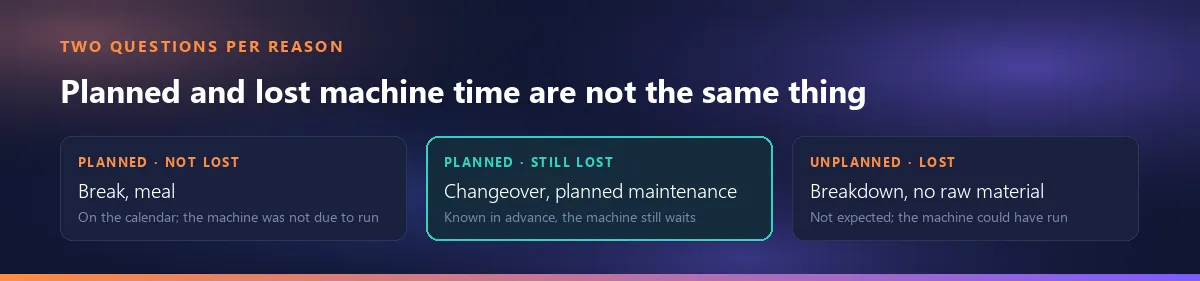
In Smartifie Start Stop, these two questions sit on every reason as two separate boxes: “Planned stop” and “Counts as lost availability”. The sentence under them is a reminder of the difference: “A planned changeover still costs availability; a scheduled break does not.” In the starting list, break, meal and meeting come in as planned but not lost, and set-up and planned maintenance as planned and lost. The second box also feeds a number: the Availability figure on the Overview screen is net hours divided by net hours plus the stops that count as lost (with shifts set up, only the part of a stop inside shift hours counts). The first box keeps planned and unplanned stops apart in the reports. Smartifie Start Stop does not calculate a full OEE figure. How planned stops should appear on a chart is a separate decision; we covered how planned stops should show on a downtime Pareto there.
Example list: 7 categories, 18 reason codes for a small shop
The list below is a starting point, not a standard. The names and flags come from Smartifie Start Stop's starting list, and the “Internal logistics” category from the example in the video. Rename to suit your shop, drop what you do not use, add what is missing.
| Category | Reason | Planned | Lost machine time |
|---|---|---|---|
| Planned | Break | Yes | No |
| Planned | Meal | Yes | No |
| Planned | Meeting | Yes | No |
| Planned | Set-up / changeover | Yes | Yes |
| Planned | Planned maintenance | Yes | Yes |
| Planned | Cleaning | Yes | Yes |
| Machine | Breakdown | No | Yes |
| Machine | Broken tool | No | Yes |
| Machine | Waiting for maintenance | No | Yes |
| Material | No raw material | No | Yes |
| Material | Waiting for the previous step | No | Yes |
| Quality | Waiting for inspection | No | Yes |
| Quality | Trial run after set-up | No | Yes |
| Personnel | No operator | No | Yes |
| Personnel | Training | Yes | Yes |
| Internal logistics | Forklift late | No | Yes |
| Other | Power | No | Yes |
| Other | Missing drawing or information | No | Yes |
One row is debatable: Training is marked planned but lost. If training happens at the machine, the machine could have been running and the time is lost. If it happens in a classroom while someone else runs the machine, untick that flag. The same name being flagged differently in two shops is normal; what matters is that everyone in your shop gives the same answer.
A reason that is not on the list: the operator types it, the office sorts it
No list can know every stop in advance. When a stop happens that is not on the list, there are two easy options, and both cause trouble. If whatever the operator types in free text goes straight into the reports, the same event shows up spelled forty different ways and none of them looks big. If the operator only gets “Other”, the information is gone: a month later nobody remembers what “Other” was.
The middle way: the operator types the reason in their own words, the reason waits without a category, and the office sorts it at regular intervals. The office links the typed reason to the right category, or makes room for it as a new reason. One distinction matters here: “not decided yet” and “decided: Other” are two different answers. Put them in the same box and the reasons the office still needs to look at get lost among the ones that truly fit nowhere else.
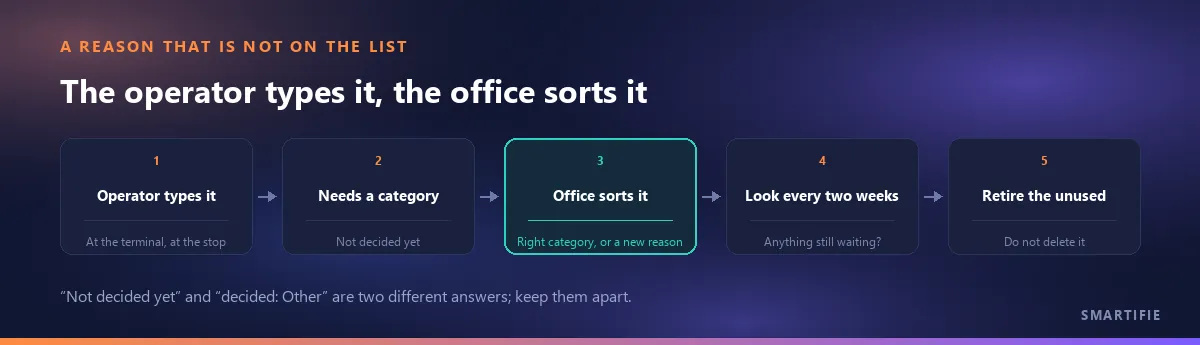
In Smartifie Start Stop, a reason typed at the terminal arrives with no category on purpose, and carries a “Needs a category” badge on the office list. A yellow line above the list says how many are waiting, and the “Only those needing a category” filter shows just those. You assign the category with “Edit”. A reason typed at the terminal comes in as unplanned and counted as lost; if that is wrong, the flags are on the same form. If the operator types the exact name of a reason already on the list, ignoring capitals, that reason is used and no new record is created. But “Forklift late” and “Late forklift” become two different reasons; the office tidies up twins like these at review time. As for what a large “Other” bar is telling you, we covered that in the Pareto article.
A reason you stop using is retired, not deleted
After a while some reasons stop being picked: you no longer do that job, the machine is gone, or the reason has been merged into another name. Deleting it is tempting, but deleting breaks the history: last month's stops now point to a reason that no longer exists. The right move is to make it inactive: past stops keep the name they were recorded with, and the operator simply no longer sees that reason at the terminal.
Smartifie Start Stop has no delete button. You open the reason with “Edit” and untick “Active”; because the list shows active reasons by default, the reason drops out of the everyday list and comes back when you pick “Inactive” in the “Status” filter. The terminal only offers active reasons. The product does not switch a reason you made inactive back on by itself. Reasons with the “System” badge are written by the product itself, for example when a shift ends with a job still open, so they cannot be edited or picked by operators.
Review the list after the first two weeks
The first list is written at a desk; the second one comes from the floor. After two weeks of use, sit down and go through these points:
- Reasons waiting for a category: link every reason the operator typed to the right category, or turn it into a new reason.
- Reasons nobody picked: a reason not picked even once in two weeks is a candidate for retirement.
- Two names for the same event: keep one and give it the right category, retire the other. Give the category first: a reason left without a category can keep being counted among those waiting for one, even after it is made inactive.
- What piles up in “Other”: if “Other” has grown, a reason is missing from the list; find out what it is and add it by name.
- Are the planned and lost flags consistent: do similar stops have the same answers, and do they match the definition you wrote down?
Two weeks is not an arbitrary choice: Smartifie Start Stop's Overview screen always shows the last 14 days, so when you sit down to review, the list's first two weeks are right in front of you.
In short: start with a short list, put every reason in one category, answer “is it planned?” and “does it cost machine time?” separately, sort what operators type in, retire what you no longer use, and review the list again after two weeks.
If you want to build your downtime reason list in your own shop, you can try Smartifie Start Stop free for 15 days, no credit card required. The trial runs in the cloud, in the browser; stop reasons, categories and the terminal are all part of it.