
Your price list is in US dollars. A hotel group in Toronto wants the quote in Canadian dollars. One of the items, a combi oven, isn't on your list; you buy it from a supplier who prices it in euros. The customer has one question: what's the total? Put the three lines in a spreadsheet and hit SUM and you'll get a number, but it isn't dollars, euros or Canadian dollars. This article is about building that one number so the quote still agrees with itself.
The short answer: a quote with mixed currencies isn't a mistake, it's a layout. Each line stays in its own currency, the total lives in one currency, and every conversion in between is written on the quote as a rate row. That way nobody has to type the total they “know is right” into a cell.
Half in dollars, half in euros: the customer wants one number
In our example quote, two items come from your own list: 2 commercial dishwashers (4,000.00 USD) and 4 undercounter refrigerators (2,000.00 USD). The third, the combi oven, is 6,000.00 EUR at the supplier's price. A spreadsheet adds those three cells without complaint and gives you 12,000.00. Formatting the cells as currency doesn't change that; SUM adds numbers and knows nothing about currencies. The result means nothing in any currency.
At this point one of two things usually happens. Someone converts in their head and types the “right” number over the total cell, or the lines go to the customer and the total is left to them. In the first case the quote can no longer check itself: anyone who adds up the lines won't arrive at the printed total. In the second, the customer picks the exchange rate. This article describes a layout that replaces both. Which day's rate to use is a separate decision, covered in which day's rate goes on a foreign-currency quote.
A total has one currency: the quote currency
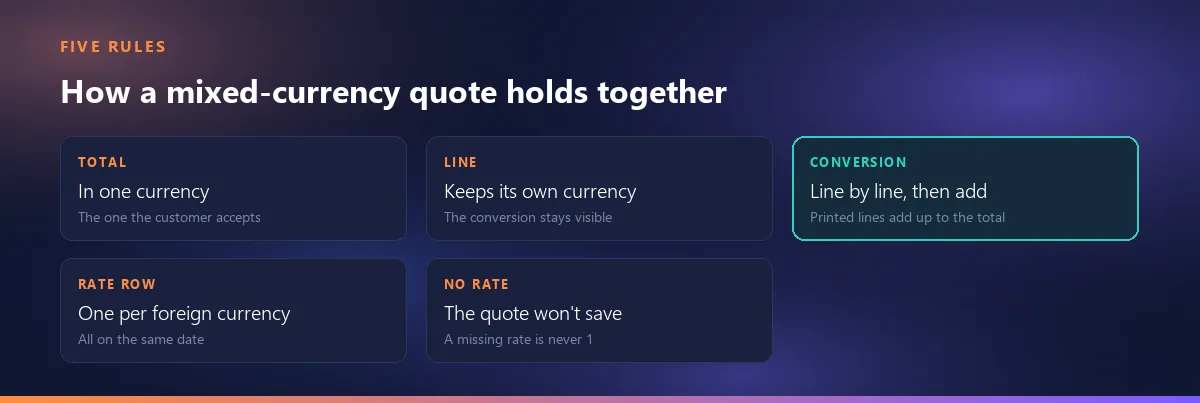
A quote's total is written in one currency; call it the quote currency. The natural choice is the currency of the amount the customer will accept and pay: Canadian dollars for the hotel group in Toronto. The currencies the lines are priced in don't change that decision. The lines can be in US dollars, euros or anything else; the total at the bottom is in Canadian dollars only.
There is an alternative, and it's fair to mention it: write a separate subtotal for each currency (“6,000.00 USD + 6,000.00 EUR”). It isn't wrong, but it hands the decision to the customer. They have to combine the two subtotals themselves and pick the rate to do it with, and your figure and theirs can come out different. The choice here isn't about negotiation, it's about readability: for the customer to approve one number, that number has to be written on the quote. Whether you price in your currency or theirs, that is, who carries the exchange rate risk, is covered in the article linked above.
In Smartifie Quote, the quote currency is the Currency field in the quote header, chosen from the full ISO currency list. On the PDF each line's unit price and amount are printed in that line's own currency, and the totals in the quote currency.
Convert the line, or convert the price list?
There are two ways to bring the supplier's euro price into the quote. One: the line stays in its own currency, euros, and the conversion is visible on the quote. Two: you convert the price into the quote currency beforehand and write it on the product card or price list in Canadian dollars; the rate is then buried inside the price.
The cost of the second way shows up over time. Nobody can see a buried rate: three months later, nobody looking at the list knows which rate that Canadian-dollar price was worked out at. As rates move, the list quietly goes stale, and nothing tells you it has. With the first way the conversion can be audited: the line's euro amount, the rate and the Canadian-dollar result sit side by side, and both you and the customer can check them with a calculator. That's the test: a conversion you can see on the quote can be checked; one buried in the price can't.
There's one exception: if you deliberately keep a Canadian-dollar price list for that market, those prices aren't conversions, they're commercial decisions. The line is then simply in Canadian dollars and there's nothing to convert. The trouble starts when a converted price passes itself off as a price in its own right.
In Smartifie Quote the product card carries the currency of its price. When you pick the product on a quote, the line brings that currency along with the price; on an item you type in by hand, you set the currency on the line itself.
Convert line by line, then add up
There are two possible orders for getting the total. You can add the lines up by currency first and convert each subtotal once, or convert each line separately, round it to the cent in the quote currency and then add up those rounded amounts. On paper they look as if they should match. They don't always.
Example: three separate spare parts at 33.33 USD each, and a rate of 1 USD = 1.35 CAD. Converted line by line, each line comes to 45.00 CAD, and the three lines add up to 135.00 CAD. Add first and convert afterwards and you get 99.99 USD = 134.99 CAD. A one-cent gap is small, but someone checking the quote line by line won't reach the printed total, and from then on the conversation isn't about price, it's about whether the document can be trusted.
Converting and rounding line by line makes the printed lines add up to the printed total; converting in bulk can leave a cent off. Smartifie Quote takes the first route: each line is converted at its own rate and rounded in the quote currency, and the totals are the sums of those rounded values. When you export a mixed-currency quote to Excel you also get a quote-currency column, and its lines add up exactly to the grand total. The tax side of the same principle is covered in why VAT rounding leaves a cent off. One more detail: currencies with no minor unit, such as the Japanese yen, are written without decimals; the rest get two.
| Item | Line amount (own currency) | Rate | In quote currency (CAD) |
|---|---|---|---|
| Commercial dishwasher, 2 × 2,000.00 | 4,000.00 USD | 1 USD = 1.35 CAD | 5,400.00 |
| Undercounter refrigerator, 4 × 500.00 | 2,000.00 USD | 1 USD = 1.35 CAD | 2,700.00 |
| Combi oven (supplier's price), 1 × 6,000.00 | 6,000.00 EUR | 1 EUR = 1.50 CAD | 9,000.00 |
| Total (before tax) | 17,100.00 CAD | ||
Figures and rates are illustrative, not any real day's rates. Tax is left out to keep the example simple.
One rate row per foreign currency, all on the same date
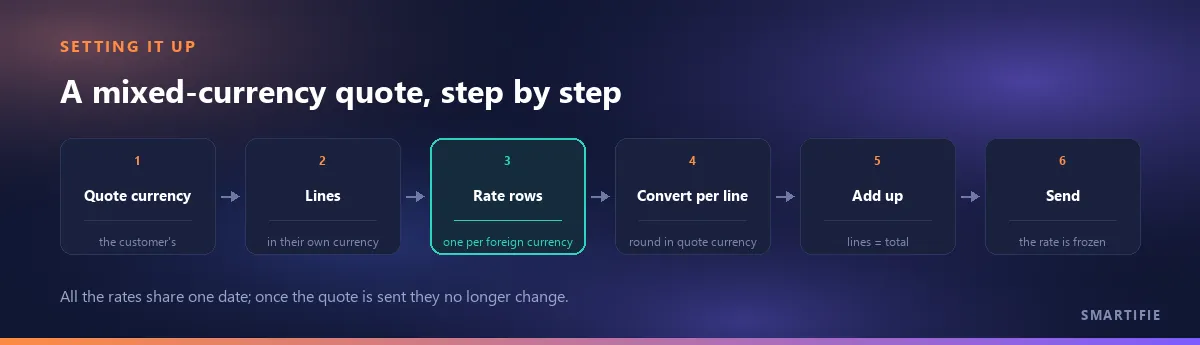
How many rates should the quote show? Not one per line, but one per currency that differs from the quote currency. Our example has two foreign currencies, US dollars and euros, so the quote carries two rate rows: 1 USD = 1.35 CAD and 1 EUR = 1.50 CAD. A second or third line in the same currency doesn't bring a new rate; it uses the first one's.
Write each rate the readable way round: “1 USD = 1.35 CAD”, not “1 CAD = 0.7407 USD”. A small number full of leading zeros is the hardest to read and to check, and a digit in the wrong place converts that line ten times wrong. The readable direction is the one with a meaningful digit before the decimal point.
All the rates belong to one date. If the dollar rate is from one day and the euro rate from another, the total belongs to no day at all, and the question “which day's price is this?” has no answer. One more detail: the euro line converts straight into Canadian dollars. Even though your own currency is the US dollar, the quote carries a direct EUR-to-CAD row; a rate between two currencies, neither of which is the one you keep your books in, is called a cross rate.
In Smartifie Quote, as soon as a line's currency differs from the quote's, an Exchange rates card appears under the lines. It has one row for each foreign currency, shown the readable way round. The note on the card sums up the rule: the rates are frozen on the quote, printed under the totals, and can be changed while the quote is a draft. In the video we build the Canadian-dollar quote for the Toronto hotel group from start to finish:
Watch how it works
Real screens, start to finish.

Multi-Currency Quote: Freeze the Exchange Rate | Smartifie Quote
How to make a quote in your customer's currency in Smartifie Quote when your lines are priced in other currencies, and freeze the exchange rate on it.
The video loads from YouTube when you press play.
If you'd like to try the steps on your own quotes: a quoting tool that keeps each line in its own currency and totals in one.
A line with no rate must not count as “1”
The most expensive mistake in a mixed-currency quote is the silent one. If a foreign line with an empty rate is counted at “1”, the 6,000.00 EUR combi oven goes onto the quote as 6,000.00 CAD instead of 9,000.00 CAD at our example rate: 3,000 Canadian dollars given away without anyone deciding to. In a spreadsheet an empty rate cell either zeroes the line or, if someone wrapped the formula so it wouldn't show an error, carries the amount across unchanged. Neither raises a warning; the mistake only surfaces when the customer or your bookkeeper spots it.
The right behaviour is strict: a quote must not save while any foreign line is missing its rate. That's how Smartifie Quote works; it refuses the save and names the currency whose rate is missing. Because nothing saves until the rate is there, a quote with a wrong total never makes it into the records.
If you change the quote currency later
After seeing the quote, the customer may say “actually, quote it in US dollars”. On a quote that's still a draft, that doesn't mean touching the lines. The lines stay in their own currency; only the total and the rate rows change. If the new quote currency is already on the quote, the rates aren't set up again from scratch; they're restated from the ones already there. With 1 USD = 1.35 CAD and 1 EUR = 1.50 CAD, switching to US dollars turns the euro row into 1 EUR = 1.11 USD (1.50 ÷ 1.35), and the dollar lines need no rate any more because they're now in the quote currency.
If the new currency isn't on the quote at all (say the customer suddenly asks for Swiss francs), the rates are set again for that currency. Smartifie Quote handles both cases this way. Once a quote has been sent it's locked, currency included; the change goes into a new revision of that quote, and since the new revision opens as a draft, its rates can change while it is one.
Once it's sent: a mixed-currency quote freezes too, on one date
When the quote is marked Sent, the rate boxes lock and the total stops moving; whatever exchange rates do next, the document in the customer's inbox and the one on your screen show the same figure. The rates are printed on the PDF under the totals, with their date, and the on-screen preview reads from the same list. The customer can check every conversion from the document itself.
Why the rate has to be frozen at all, why a live rate is the wrong answer, and what the validity period has to do with it are the backbone of a separate article, so we won't repeat them here: which day's rate goes on a foreign-currency quote.
To be clear about the boundary: Smartifie Quote doesn't produce invoices. A quote or a proforma isn't an accounting document; once a quote is accepted, the rate on the invoice and any exchange difference are invoicing questions for your accountant.
To close, in one line: leave each line in its own currency, write the total in one currency, and put every conversion in between on the quote as a rate row with one shared date. Which day the rate is taken on is a separate decision: which day's rate goes on a foreign-currency quote.
A quoting tool that keeps each line in its own currency and totals in one