
Once you start booking labor hours to jobs, the first argument usually happens over lunch: a job that started at 11:40 am and finished at 12:50 pm, is that 70 minutes, or does the half-hour break come off? Search for it and you mostly find payroll and time clock pages; but the person costing jobs is not asking what to pay, they are asking how long the job really took. This article answers that question from the shop floor: should the break come off, how a break taken off the shift calendar is worked out, where it goes wrong, and when it is better to have operators clock their breaks.
The short answer: yes, the break comes off the job's time. But a break taken off the calendar is an assumption, not a measurement: whatever part of the job falls inside the break window is deducted, and if the break is taken at another time, or someone works through it, the number is wrong. If everyone breaks at a fixed time, the calendar is enough; if breaks are staggered, having operators press STOP is more accurate. Either way, raw, break and net time should stay separate, and the record should say where the break came from.
Are breaks deducted from job labor hours? The short answer
Nobody works on the job during a break. If the break does not come off, every job that runs over lunch looks longer than it was: the same part takes 40 minutes in the morning and 70 minutes when the job runs into lunch, and the two can no longer be compared with each other, with the standard or with your next quote. So the question is not whether to deduct the break, but how. There are two ways: calculate it from the shift calendar, or have the operator stop the job when going on break.
To be clear about scope: this article is about the time of the job. What an employee is paid, their hours and any legal break rules are a separate subject and are not covered here. We explained why a labor ticket keeps three separate times, raw, break and net, rather than one merged number, so we will not repeat it.
How a calculated break is worked out: where the job and the break window overlap
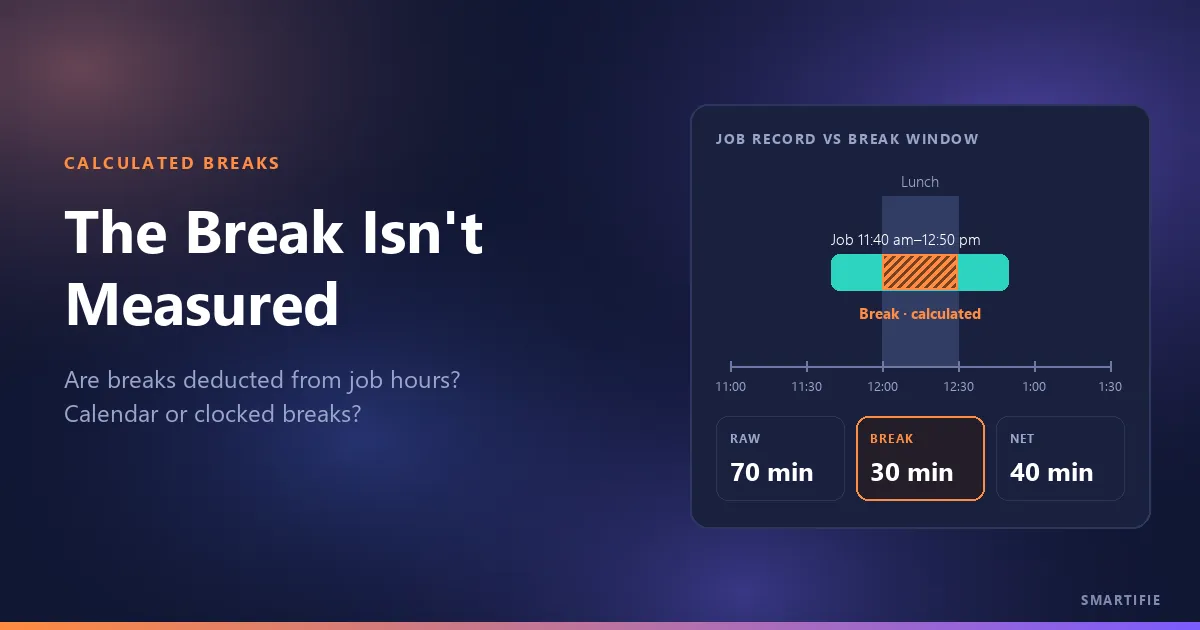
A break taken from the calendar is the time where the defined break window and the job record overlap. No more, no less: if the job covers the whole break, the whole break comes off; if it covers part of it, that part comes off; if the job never touches the break, nothing comes off. An example: a day shift from 8:00 am to 5:00 pm with lunch from 12:00 to 12:30 pm.
| Job record | Raw | Break | Net |
|---|---|---|---|
| 11:40 am–12:50 pm, not stopped for lunch | 70 min | 30 min | 40 min |
| 12:10–1:00 pm | 50 min | 20 min | 30 min |
| 8:00–11:50 am | 230 min | 0 | 230 min |
| 11:40 am–12:00 STOP, 12:30–12:50 pm resumed (two records) | 40 min | 0 | 40 min |
The first row is the case in question: the job ran across lunch, nobody pressed anything, and half an hour came off. In the second, the job started in the middle of lunch, so only the 20 minutes that overlap come off. The third never touches lunch. In the fourth, the operator stopped the job when going to lunch; the break window falls between the two records, and there is nothing to deduct.
If the operator stops for the break, does it come off twice? No
The fourth row also shows why. Stopping ends the record and resuming opens a new one; the paused time is a gap between two records and sits inside neither. A calendar break can only ever overlap time the operator was actually on the record. So taking breaks off the calendar and having operators stop can be used together, and the same half hour can never come off twice.
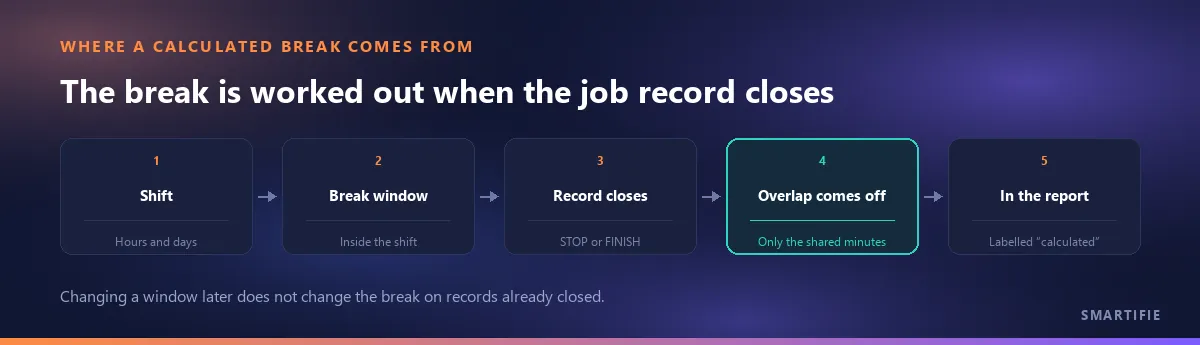
In Smartifie Start Stop, this choice is the “How breaks come off the clock” setting under Settings → Time. The default is “Deduct them from the shift calendar”; the other two options are “The operator presses STOP” and “Both, without deducting twice”. The calculated break is worked out when a record closes (when the operator presses STOP or FINISH), from where that record's start and end overlap the shift calendar, and it is written to the record.
Which job does the break come off?
The job that was open during the break. Whatever job sits across the break window carries the break; if two jobs are open on two machines at once, each record carries its own overlap with the window. This has a practical side effect: much of a short job that starts just before lunch can come off as break. A 30-minute job from 11:45 am to 12:15 pm has 15 minutes of break in it, half its raw time. That is not an error; the window simply fell on that job.
So when you compare jobs, compare net time, not raw time. Jobs that run over lunch always have a larger raw time; net time puts the morning job and the lunchtime job for the same part on the same footing. A high share of break on a short job does not mean the job was slow.
Does a paid break come off too? Yes
Whether a break is paid concerns what the employee is paid, not how long the job took. During a paid 15-minute coffee break nobody worked on the job either; book that quarter hour to the job and it looks longer than it was. For job time, a paid break and an unpaid break are the same.
In Smartifie Start Stop, every break has a “Paid” box, and the note under it says it plainly: “Paid” is for payroll only; a paid break is still time the job was not worked, so it comes off the production time either way. Ticking the box does not change how much of the break comes off.
Where does a calculated break go wrong?
The calendar assumes the break was taken inside the window. As long as that holds, the number is right; where it does not, the number still looks tidy, but it is wrong. These are the cases you meet most often:
| What happened | Effect on the job's time |
|---|---|
| The break was taken at another time: lunch is set for 12:00 to 12:30, the operator went at 12:40 and left the job open | The window still comes off, and the lunch is booked to the job. If the same job carried on, the total looks right but the wrong half hour came off; if the job changed in between, the first looks short and the second looks long. |
| Someone worked through the break and did not stop the job | Half an hour of real work comes off: the job looks shorter than it was. |
| Someone worked through the break, ate later and stopped the job then | The window comes off, and the later pause is not in the record either: the job looks half an hour short. |
| The break ran long or ended early | The calendar takes off the defined length; the difference is booked to the job. A long lunch shows up as job time. |
| There is no shift or break on the calendar | Nothing comes off; every job that runs over a break looks long. |
| The break was typed outside the shift's hours | It never comes off. |
| In a cloud system, the factory's time zone is wrong | The window shifts by hours: the break comes off time that was worked at an hour with no break. |
The upshot: a calculated break is a good approximation when the break really is taken inside the window. When it is not, the number is tidy but wrong, and you cannot tell by looking at it.
Smartifie Start Stop puts the last three cases on screen rather than on paper. When breaks are set to come off the calendar and no break is defined, a warning at the top of the Shifts screen says “Nothing is being deducted”. A break typed outside the shift's hours cannot be saved; the screen names the break that falls outside the shift's hours. The “Factory time zone” field under Settings → Time sets the time zone the cloud version reads shift hours in; if it is left blank, the web version uses Türkiye time and the installed app uses the device's own time zone.

Clocked breaks: what you gain and what you give up when operators press STOP
If the operator stops the job when going on break and resumes it on return, the break is clocked. The gain is plain: the real time and length go on the record, staggered breaks come off correctly, and a lunch eaten at 12:40 comes off at 12:40. So is the cost: every break is a button. A forgotten STOP stretches the job across the break; a forgotten resume leaves the job paused after the break is over. On a shop floor the biggest risk is people giving up on the system, and every extra button adds to it.
There is a middle way: both. The calendar takes the shared break (lunch) off by itself, and the operator stops the job for any break that is not on the calendar. As shown above, nothing comes off twice. Whichever way you choose, a break is a planned pause and does not count against the machine; we covered why a break is planned and not lost machine time in the article on downtime reasons.
That is why Smartifie Start Stop defaults to the calendar: the operator is asked for nothing at break time. In the product's own reasoning, every button they do not have to press is a button they cannot forget. If you want breaks clocked, choose “The operator presses STOP”; in that mode the calendar deducts nothing. “Both, without deducting twice” takes the shared break off the calendar and also accepts the operator's STOP.
Calendar or STOP? Decide by how your shop works
The right method depends on how breaks are actually taken, not on a software default. The table below sets out the most common setups:
| How breaks are taken in your shop | Recommended |
|---|---|
| A shared break time: a bell rings, the canteen opens, the line stops together | Calendar |
| One shift, a small team, lunch always at the same time | Calendar |
| Breaks are staggered or taken when each person can | STOP, or both |
| The machine keeps running and the operator spends the break beside it | STOP |
| Several shifts, different break times by work center | Calendar, with windows set per work center |
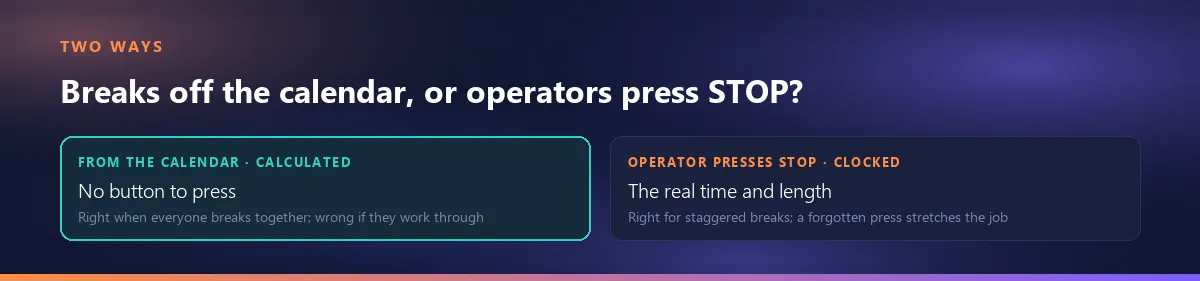
If you are not sure, start with the calendar for the first two weeks and compare the break column in the report with what operators tell you. If breaks really are taken inside the window, the two will match and nobody gets an extra button. If they do not (someone always goes late, one machine runs right through lunch), change the method at that point, or give that work center a shift of its own.
Writing the break window correctly: shifts, breaks and holidays
A calculated break is only as good as the calendar behind it. When you write the calendar:
- Enter the real time, not the one in the handbook. If the handbook says 12:00 but the canteen opens at 12:15, the window should start at 12:15.
- The break has to sit inside the shift. A break outside the shift would never come off; Smartifie Start Stop will not save one and tells you why.
- The paid flag does not change the time. Paid or unpaid, both come off the job's time.
- If a work center breaks at a different time, define its shift per work center. In Smartifie Start Stop, an “Every work center” shift applies to every work center. A work-center-specific shift does not replace it, it adds to it: on that work center, the breaks of both come off. If one area has a different lunch, it should not also be covered by the general shift.
- A shift that runs past midnight belongs to the day it starts. A shift from 10:00 pm Friday to 6:00 am Saturday is a Friday shift; tick its days accordingly.
- Enter your holidays. On a holiday no shift exists and no break comes off; if anyone works that day, Smartifie Start Stop's default setting still counts the time, as work outside the shift.
The calendar has one more job: the end of the shift. With Smartifie Start Stop's default setting, a job still open when the shift ends pauses, and carries on by itself with the same operators when the next shift starts; the hours in between are not booked to the job. A job with an unexplained stop or a correction waiting for approval does not restart by itself; it waits on the supervisor's list. With no shift defined, nothing pauses automatically at the end of the day either.
In the video below you can watch, in a few minutes, a shift, its breaks and a holiday being set up from an empty calendar, and where the “calculated” label shows up. The shifts, breaks and holiday in it are fictional test data.
Watch how it works
Real screens, start to finish.

Shifts and Breaks: Automatic Break Deduction | Smartifie Start Stop
How to set up shifts and breaks in Smartifie Start Stop: automatic break deduction from the shift calendar, a paid break, a night shift past midnight, a holiday, and why the break in the reports says "calculated".
The video loads from YouTube when you press play.
The app in the video is Smartifie Start Stop, a shop-floor terminal app that deducts breaks from the shift calendar. For a screen-by-screen walkthrough, the guide has the shifts and breaks screen, step by step.
How to read a “calculated” break in the report
A trustworthy report keeps raw, break and net time side by side. If the break column says “calculated”, the figure comes from the calendar and was not measured. So do not report that column as “operators took 30 minutes of break”; all it says is that 30 minutes of the jobs fell inside the break window. It cannot tell you who went on break, or when.
One more detail: because the break is worked out and written when the record closes, changing the break window later does not change records that are already closed. If you move lunch from 12:00 to 12:15, records before that day keep the old window. Note the date of the change, and do not compare before and after as if they followed the same rule.
In Smartifie Start Stop, raw, break and net time are always shown apart; that display is not a setting you can turn off, because a break from the calendar is an assumption and one merged number would misdescribe the record. On the Reports screen, the columns are “Raw hours”, “Break hours (calculated)” and “Net hours”, and the line under the dates reads “Break time is deducted from the shift calendar, not measured at the terminal.” The break figure on the Overview screen carries the label “Break · calculated” too.
In short: the break comes off the job's time; a calendar break is the part of the job that overlaps the break window, and it is an assumption. With a shared break time the calendar is enough; with staggered breaks, have operators press STOP, or use both. Write the window with the real time and inside the shift, enter your holidays, do not read a “calculated” break in the report as a measurement, and note the day you change the window.
If you want to try taking breaks off your own shop's calendar, you can try Smartifie Start Stop free for 15 days, no credit card required. Shifts, breaks and holidays are part of the trial.