
You have kept your price list in a spreadsheet for years, and your customer list too. Moving to a quoting tool starts with importing those two files, and that is exactly where things go wrong: some prices come in as zero, others a thousand times too high, the second attempt creates a duplicate of every product, and tax IDs lose their leading zeros. Most pages on the subject walk you through one program's buttons: where to click, which template to download. This article is about your file instead: seven things to check before you import, which problems come from the file rather than the import, and how to load a corrected file again without creating duplicates.
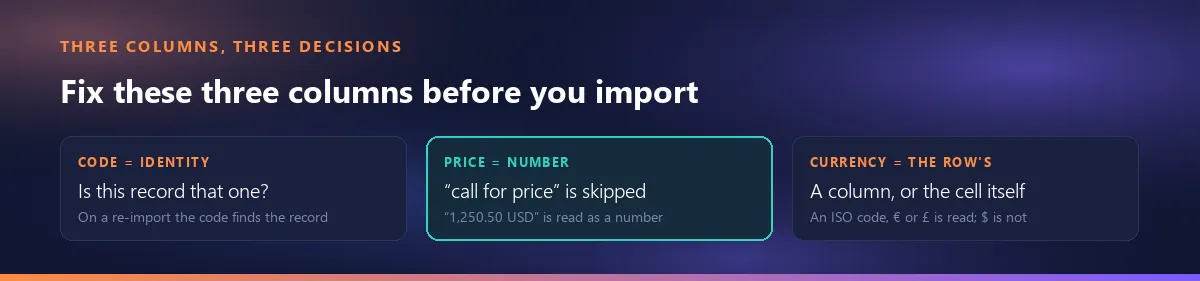
The short answer: an import doesn't guess what your file means; it reads it. The code column is each row's identity, the price cell is a number, and the currency belongs to the row itself. Fix those three before you import and a re-import becomes a repair; leave them and it becomes a duplicate factory.
Check 1, the heading row: don't copy into a template, let the tool read your file
The first reflex is to download the tool's sample template and paste your data into it. That is where most of the errors are born. A column slips while you copy, and prices land in the unit column. Drag a code cell down and Excel increments the number at the end: below P-009 you get P-010, a code that doesn't belong to that product. And any column of yours with no place in the template gets lost on the way.
Here is what to look at in your own file: are the headings on a single row, are there merged cells, and are there group headings such as “— Valves —” between the product groups? A group heading carries a code or a name, so to the import it is a product and it comes in as a record; delete those rows first. Unmerge merged cells too: a value that seems to belong to several rows really sits in only one of them.
In Smartifie Quote the sample file is optional; the import was designed to accept the file your previous program gives you, as it is. Headings match regardless of case and accents, in three languages and in the spellings other programs use (SKU, Description, Unit Price, Currency, Customer Code, Name, Tax No and so on). Column order doesn't matter, unknown columns are ignored, and the heading row is looked for in the first 10 rows, so a line such as “Price List — October 2026” above it is fine. If the file has neither a code nor a name column, the whole file is refused and the message says why. On the Customers and Products screens, the Which file can I import? panel above the Import button lists every column, whether it is required, and an example.
Check 2: the code column is the key to the import
A row without a code causes no trouble on the first import; the trouble comes on the second. The code is the tool's only answer to “is this row the record I took in last time?”. In Smartifie Quote a row without a code gets one derived from its name and its position in the file: the first eight letters or digits of the name, a hyphen and the row number. Customers work the same way, with the code derived from the name. Load the same file in the same order and you get the same codes. But if you inserted a row, re-sorted the list or deleted a line, the codes can shift and a second record is born for the same product.
The advice: fill in the code column before the first import. If you have already imported without codes, take the list out with Export to Excel, carry the derived codes over into your own file and work with those codes from then on. If your old system has two different codes for the same item, that is not something an import can solve; it is migration clean-up: what happens when one item has two codes.
Check 3: if the same code is on two rows, which one wins?
The typical case in a price list: a price increase came in, the new price was added as a new row at the bottom, and the old one was never deleted. Or two people added to the list separately. Some tools quietly let the last row win in a file like that, others the first; you usually find out which one after a quote has gone out at the wrong price.
In Smartifie Quote the first row is applied; the later one is skipped and reported: “Row 11: code GRD-36-T already appears in row 5 of the file; row 5 was applied and this row was skipped.” The comparison ignores case and accents, so p-104 and P-104 are the same code. The advice: keep the row with the price that is valid now and delete the old one; don't assume “the last one wins anyway”. This check only catches repeats inside one file: if you wrote a product with a different code from the record already in the tool, you get two records.
Check 4: the price cell is a number, not a sentence
Prices that come in as zero or wrong usually have one of three causes:
- A word: “call for price”, “TBD”, “N/A”. In many tools a cell like that quietly turns into 0; the zero-priced product waits in the catalogue until it goes out on a quote.
- Symbols and separators: “$1,250.50”, “1,250.50 USD”, “1 250.50”. The cell arrives as text, and you are at the mercy of how the tool reads it.
- The decimal mark: “1,250” is one thousand two hundred and fifty in the US and one and a quarter in most of Europe. The same file gives two different prices in two countries; prices off by a factor of a hundred or a thousand come from here.
In Smartifie Quote a word or a negative price makes the row skip, and the report quotes the cell: “Row 9: code REF-2D-R has the price “call for price”, which is not a number; this row was skipped.” The row never comes in at zero. Prices with symbols and separators are read as numbers, by a simple rule: the part from the first digit to the last is the number, and the last separator is the decimal mark. The one ambiguous shape is a single separator followed by exactly three digits (“1,250”, “1.250”); there the language of the interface decides. On an English screen “1,250” is one thousand two hundred and fifty and “1.250” is one and a quarter.
The advice: don't write a word into the price cell of a product with no price. Either leave that product out, or leave the cell empty; a row with a blank price is taken in with a list price of 0, and you enter the price on its record later. The difference is that an empty cell is a deliberate gap, while a word is a sentence pretending to be a number. If you have unit prices with three decimals (fractions of a cent, such as 1.250), check those rows separately after the import.
Check 5: the currency belongs to the row
If some of your products are priced in US dollars and others in euros, your one price column holds mixed currencies. If the only thing in the file that tells them apart is the sign next to the number, the importing tool either reads that sign or files the whole list under one currency. In the second case the euro prices come in as dollars, wrong by the exchange rate, and no error message says so.
In Smartifie Quote the currency column is read first (Currency). If there is no such column or the cell is empty, the sign in the price cell is used, but only an unambiguous one: € is read as EUR, £ as GBP, and a written ISO code (“1,250.50 USD”) is read as that currency. The $ sign is ambiguous: US, Canadian, Australian and Mexican money, among others, are all written with it. A cell like “$1,250.50” is read as the number 1,250.50 in your company's currency; if your company currency is USD the result is right, but because of the default, not because of the sign. With no sign at all, the company currency is used. An invalid currency code makes the row skip, and the report says so.
The advice: in a mixed-currency list, add a separate Currency column and write the ISO code on every row (USD, EUR, CAD); don't rely on the sign. How lines in different currencies add up on one quote is a separate subject: quote line items in different currencies. Exchange rates are outside the scope of this article.
Check 6: tax IDs, phone numbers, emails: what Excel quietly changes
Excel automatically removes the leading zeros from a cell that looks like a number. Microsoft's own support page says so plainly and adds a warning: formatting the cell afterwards does not restore zeros that were already removed. So the tax ID, phone or ZIP code column has to be formatted as text before you type or paste the data. For the methods in detail: Microsoft Support: Keeping leading zeros and large numbers.
That is exactly why Smartifie Quote's sample file writes the tax number column as text. But in your own file, the import can't bring back a zero Excel has removed: the cell reaches the tool without it. Nor does the import validate tax IDs. Before you import, check by eye a few numbers that should start with a zero.
Phone numbers and emails are handled differently: a malformed value (such as an incomplete “info@” address) does not get the row refused. The customer comes in, the value is kept as it was, and the result tells you how many rows had one. The reason is simple: refusing that customer would mean typing them in again by hand. You fix the address on the customer's record, from the list.
Check 7: small file first, then the whole thing; a re-import overwrites
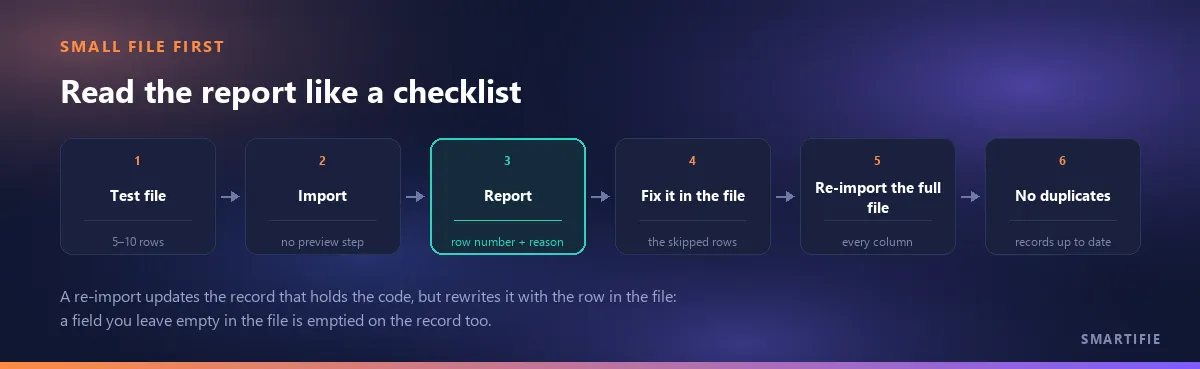
Smartifie Quote has no preview step before saving: the moment you choose the file, the rows are written. So make the first attempt a 5–10 row copy. Put a row without a code, a price with a symbol and a second currency in it; check the result on the records, then load the full file.
Importing the corrected file again doesn't create duplicates: a row whose code already exists updates that record. But the update is not a field-by-field merge; the record is rewritten with the row in the file. A field you leave empty in the file is emptied on the record too, and if a column the import reads is missing from your file altogether, that field is written empty as well. Leave the price cell blank and the list price becomes 0. So re-import with the full file carrying every column, not with a “price update” extract holding only codes and prices. If you only need to fix a few records, fix them on screen. Product photos are not touched; the import doesn't write photos.
Two more details. On the customer side, if the file holds the code of a customer you deleted or made inactive, that customer comes back, is active again, and the result says so. On the product side, a product you made inactive stays inactive on a re-import; loading an old price list again doesn't switch discontinued products back on.
Read the result like a checklist
A good import either takes every row or tells you, by row number, what it didn't take. An import that says “42 imported” and quietly swallows 18 rows of a 60-row file is worse than one that fails outright: the error is there, but you can't see it. In Smartifie Quote the result box is headed “N imported, M skipped”, and under it each problem row is written as one sentence: the spreadsheet's own row number, the code and the reason. The first 20 problems are listed; the rest is shortened to “…and more”.

The advice: go back to your file with the row numbers from the report, fix the skipped rows there and load the full file again, following the rule in check 7. If more than twenty rows were skipped, the problem is not in individual rows but in the structure of the file; go back to the heading row and the price column.
What the tool does here, and what it doesn't
In the video we import two files a kitchen equipment supplier took out of an older program. The customer list goes in with the old program's headings as they are: 6 imported, 0 skipped, and an incomplete email address on one row doesn't drop it. In the price list the headings are on row 3 under a title line, and the Shelf column is ignored: 7 imported, 2 skipped. We fix two rows and import the same file again: 9 imported, 0 skipped, and the list shows 9 products, not 16. The companies and data in the video are fictional.
Watch how it works
Real screens, start to finish.

Import Customers and Products from Excel or CSV | Smartifie Quote
How to import customers and products from Excel or CSV into Smartifie Quote: your old program's headings work as they are, and every row either comes in or is listed with its row number and the reason it was skipped.
The video loads from YouTube when you press play.
What Smartifie Quote does here:
- Separate imports for customers and products, from .xlsx, .xls and .csv files.
- Headings matched in three languages and in common spellings; the heading row looked for in the first 10 rows; unknown columns ignored.
- A sample file in your language (optional).
- Words or negative numbers in the price, invalid currencies and codes repeated in the same file skipped and reported row by row; the currency read from the cell.
- An update instead of a duplicate on re-import; the list exported to Excel.
And, just as plainly, what it doesn't do:
- It doesn't connect to or sync with your accounting or ERP software; importing works through files only.
- There is no preview before saving, no column-mapping wizard and no undo.
- There is no photo column in the file; product photos are added on the product record, on the Photos screen.
- No branch import, and no dated or versioned price lists.
- The product doesn't issue invoices: a quote and a proforma are not tax documents.
To close, in one line: fill in the code, keep the price a number, write the currency on the row, and always load the corrected file in full. When you move on to how those products appear on a quote, see how imported products should appear on the quote line.
If you'd like to try it with your own files: a quoting tool that imports your customer and price lists and reports every skipped row. The cloud edition comes with a 15-day free trial.