
Your quote has two items whose codes differ by one letter and whose descriptions are almost identical. The customer orders the wrong one, and you ship the wrong one. Search for help and you mostly find template galleries and how-to pages: nice layouts, but none of them tells you what belongs in the line table, and in what order. This article makes that call: when a product photo earns its place, when it just makes the table longer, whose order the columns should follow, and why the stamp on a draft is not a design choice.
The short answer: the line table is the order your customer reads in. The row number and the photo say what the line is; the column order follows what the customer checks first. The draft stamp is not about looks at all: it is status information, telling anyone who sees the page that it is not yet a quote to rely on.
What a photo answers on a quote: “which item?”
A photo doesn't confirm the price; it confirms the identity. The places where it pays off are easy to name: colour, size or capacity variants of the same model; items whose description is technical when the buyer isn't; quotes the buyer forwards to the chef, the site manager or the maintenance team asking “are these the ones?”; and orders placed remotely by someone who has never seen the product. In every one of them the question is the same: which item is this line? A quote that answers with a code expects the reader to know your codes by heart; a quote that answers with a picture doesn't.
The payoff is concrete: fewer wrong-item orders and fewer “which one was that?” phone calls. Putting product photos on quotes is a request that quoting and CRM tools hear often, yet the answers are almost always about how to add them. Let's start with when.
When to leave the photo out
Not every quote needs pictures. In these cases a photo adds no information; it only takes up room:
- Service lines: installation, training, maintenance, freight. There is nothing to photograph.
- Commodities and raw materials: goods known by grade, standard and code. One photo of sheet steel looks like any other.
- Spare parts the customer already orders by code: if the buyer knows your part numbers, the picture tells them nothing new.
- When half the lines would have no picture: a half-empty photo column looks untidy, and the lines without one read as if something is missing.
A photo also has a cost: it makes the line taller, adds pages and makes the PDF bigger, which matters when the file is going to travel as an email attachment or through a messaging app. That is why the product image column in Smartifie Quote is off by default; and even when it is on, if no line has a picture the column isn't printed at all, so you never see an empty column.
Where the photo goes: right next to the row number
The photo belongs where the eye lands first on a line: the second column from the left. Put it after the prices and the reader has to scan the figures before finding out what the line is about. Nor should it sit between the row number and the item, because the customer on the phone says “item 4”: the number is the line's address and the photo is the face of whatever lives there. So the order is number, photo, then everything else.
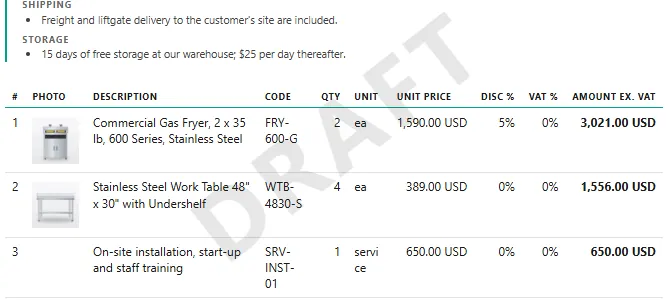
In Smartifie Quote that order is fixed: the row number is always first, the photo (when there is one) always second, and neither can be moved in the template. The picture comes from the product card (Products → Photos, with the phone camera or from a file): it isn't uploaded per quote but once, and then used on every quote and proforma that product appears on. You can select several products and give them all the same picture. The image is scaled down to fit the document, and a picture that has been deleted or can't be read doesn't stop the quote from printing; that line simply prints without one.
Whose order should the columns follow? The reader's
After the photo, the column order depends on who reads the document. Two typical readers:
- A domestic buyer asks, in order: what, how many, at what price? The table follows that order: Description → Qty → Unit → Price → Discount → Tax → Amount. The money sits last, right above the grand total, so the buyer reads the line amounts straight down into the total.
- An export buyer and their customs broker match every line against its HS code and country of origin. Those columns belong next to the description, not lost behind the prices; whoever prepares the customs entry wants everything that identifies the line in one place.
For the code column there is one question: does the buyer order using your codes or their own? If they use yours, the code goes first, right after the photo, because it's the first thing they will type on the purchase order. If they use their own, your code can move behind the description. Which fields to switch on for an export quote is a separate subject: what to include in an export proforma invoice. Here we only discuss where they go and in what order.
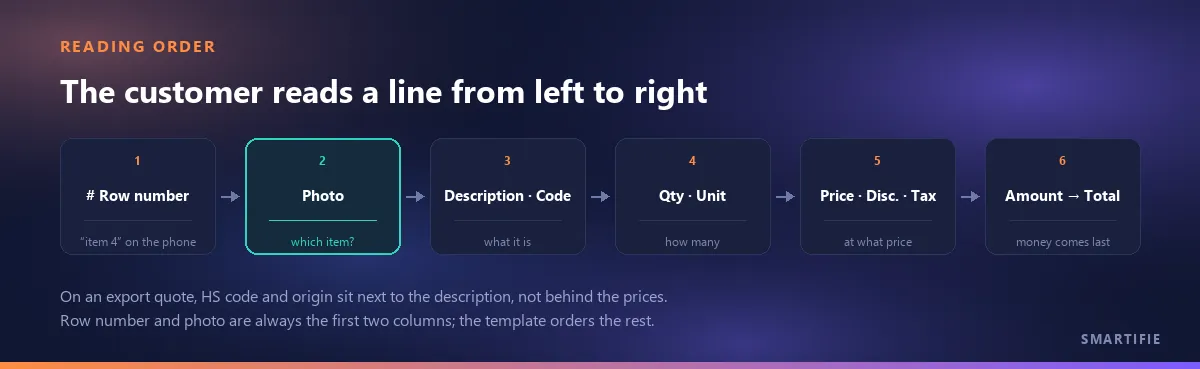
In Smartifie Quote the order is set in the template's Column order section with Move left / Move right; the columns you can order are code, description, HS code, origin, quantity, unit, price, discount, VAT and amount. The hint on the screen sums up the split: which columns appear is set on the settings screen; here you decide the order they print in.
Which columns can't go, and which should
A quote with no description, quantity, unit, price, tax or line amount is not a quote; together with the row number, those seven columns can't be switched off in Smartifie Quote. What you can switch off is the code, the line discount, the HS code and the origin. Code and discount start switched on; HS code and origin start switched off.
The test for switching one off is simple: a column printed empty tells the customer something is missing. On a domestic quote, HS code and origin should stay off; for a customer you never give line discounts to, the discount column is just a strip of zeros. Before you switch the discount column off, check in the preview how the amounts look on the document; you want to know where the reader will see the discount.
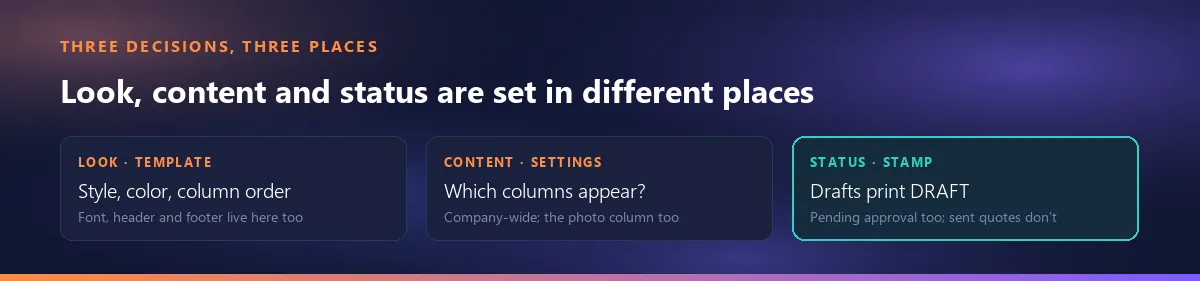
The product works the same way: the visibility of columns is set under Settings → Item columns, for the whole company; the template only decides the order. The photo column lives there too: Settings → Item columns → Product image column. A column you switch off takes no place in the order, and the template won't bring it back.
One company, several templates: branch letterhead, document language, quote and proforma
One template is often enough, but the cases that need more are familiar. Branches with a different trading name or address want their own header and footer. A customer abroad expects a document in English or Spanish; writing the header and footer per document language means keeping a separate text for each language in the same template. The quote and the proforma come out of the same template and look the same, so a customer who lays them side by side doesn't think they came from two companies.
In Smartifie Quote there is one default template, and it is preselected on every new quote; a quote without a template also prints with it. You can mark a template with a branch and a language; that records whom the template belongs to, but on the quote it is you who picks the template: the Template field lists all of them. Choosing a style is a one-paragraph decision: the 17 styles (Classic, Letterhead, Boxed, Modern and the rest) differ in type size, margins, rules, bands and frames; the order and content of the blocks don't change with the style. Alongside the style come an accent color, a font and the header and footer, and the sample document on the template screen updates with every change.
A draft stamp is not a design choice
A PDF doesn't stay on the screen. It travels as an email attachment, through a messaging app, into the buyer's folders, and it is read by people who never saw the screen it came from. They need to be able to tell from the page itself whether it is final or work in progress. It can be worse than confusion: if a quote still waiting for internal approval reaches the customer that way and gets signed, the approval step has effectively been skipped.
That is why the stamp follows status, not style. In Smartifie Quote, the preview and the PDF of a quote in Draft or Awaiting approval carry a diagonal stamp across the page; in Sent, Viewed and Accepted they don't. Nor does a Rejected quote: it was a real offer that the customer turned down, and calling it a draft afterwards would misdescribe the record. The stamp prints in the document's language (DRAFT, BORRADOR, TASLAK), so a Spanish document shows BORRADOR even if your screen is in English. It is the same in all 17 styles.
Two small notes. The sample document on the template screen carries no stamp; to see it, open the preview of a real draft quote. The stamp says the document is not yet a quote to rely on; whether that has any legal consequence is outside the scope of this article. Why a quote ends up waiting for approval is covered in what happens when a quote is stuck in internal approval and how much discount a rep can give without approval.
Does changing the template change old quotes?
It doesn't change the numbers, but it can change the look. In Smartifie Quote a quote stores which template it was written with, that is, the template's identity; when it is printed again it comes out with that template's current look. If you changed the color, the style or the footer, reprinting an old quote written with that template shows the new look. If the template was deleted, the quote prints with the default template; opening it doesn't quietly attach it to another one.
The takeaway is simple: keep the PDF that went to the customer. The copy you print today may not look like the one that went out; why a reprinted quote is not evidence is covered in the article on revisions.
What the tool does here, and what it doesn't
In the video we build the template from scratch for a kitchen equipment supplier: the Letterhead style, a teal accent color, a footer and the Code column moved after the description. Then we switch on the product image column in Settings and open the draft quote from the first episode: the photo right next to the row number and a diagonal DRAFT stamp across the page. The companies and data in the video are fictional.
Watch how it works
Real screens, start to finish.

Quote Template: Columns, Photos, Draft Watermark | Smartifie Quote
How to set up a quote template in Smartifie Quote: style, accent color, footer and column order, a product photo on each line, and the DRAFT watermark that drafts carry on their own.
The video loads from YouTube when you press play.
What Smartifie Quote does here:
- Several templates, one of them the default; 17 styles, an accent color, a font, a header and a footer (with a separate text per document language if you want) and a live sample document on the template screen.
- Column order in the template; visibility in Settings, company-wide.
- A line photo taken from the product card, next to the row number, on the quote and on the proforma.
- An automatic stamp, in the document's language, on drafts and quotes awaiting approval; the preview and the PDF follow the same rule.
And, just as plainly, what it doesn't do:
- There is no free-form page design or drag-and-drop editor; the look comes from the 17 styles, the color, the font and your texts.
- You can't add a column of your own or set column widths, and the row number and photo can't be moved.
- Which columns appear doesn't vary by template; the setting applies to the whole company.
- You can't write a watermark text of your own or switch the stamp off; it depends only on the quote's status.
- The template isn't picked automatically by branch or language; the default comes preselected and you pick any other.
- The product doesn't issue invoices: a quote and a proforma are not tax documents.
To close, in one line: put the photo next to the number, the columns in your reader's order, and leave the stamp to the document's status. If the same quote is going to become an export proforma, for which fields to switch on see what to include in an export proforma invoice.
If you'd like to try it on your own quotes: a quoting tool that handles line photos, column order and the draft stamp on one document. The cloud edition comes with a 15-day free trial.