
In most job shops this week's work orders already live in a spreadsheet: the planner's own workbook, or the file your ERP or scheduling program exports every week. Importing that list is the fastest way to get it onto the shop-floor terminal; but how you lay it out decides whether every weekly import goes smoothly, not just the first one. This article covers the layout decisions: one row per order or one row per step, which columns you need, why the work order number must never change, why routing goes in its own file, and what loading the same file again changes and what it keeps.
The short answer: getting a work order list ready for import comes down to two decisions. Every work order is one row; every routing step is one row in a separate file. And the work order number never changes, because it is the one key that gets scanned at the terminal and finds the same order on the next import. Get those two right and the file can be loaded every week: orders are updated, not duplicated. But you need to know that a blank cell empties the field on the record, and that a routes file rewrites that order's routing from scratch.
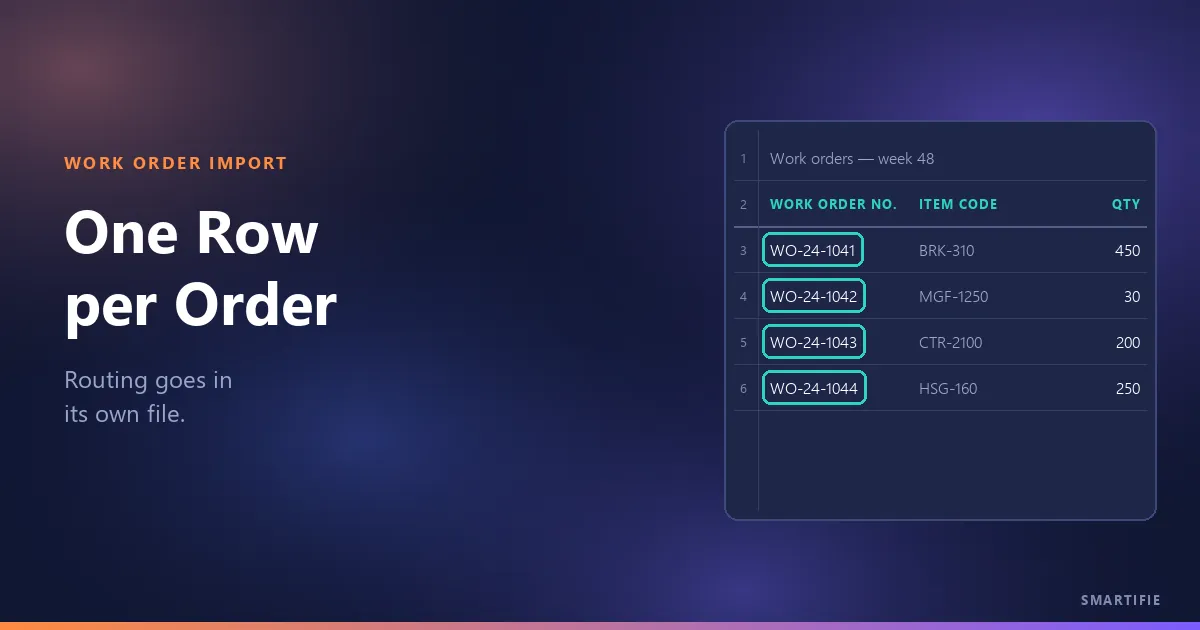
The short answer: two lists, one row per order and one row per step
The first decision is whether the routing goes on the work order row. It should not. There are two ways to squeeze routing onto the same row, and both cause trouble. The first is a column per step (Step 1, Step 2, Step 3…): the sheet grows as wide as the longest routing, stays half empty for short ones, and which step runs on which machine ends up spread over separate columns. The second is repeating the order row for every step: then quantity and due date are repeated on every row, and the moment one is corrected and another is not, the file contradicts itself.
Keeping them apart has another benefit: not every order needs a routing. Without one, an operator may start any operation on the order; with one, you can choose to enforce its sequence. The routes file only carries the orders that have a routing. In Smartifie Start Stop, the Work orders screen has two separate buttons and two separate file formats for the two lists: Import work orders and Import routes. We explained elsewhere why a work order list is the first step off paper.
The work order number: the key that is scanned and never changes
The work order number does three jobs at once: it is what the operator scans or types at the terminal, it is the order's identity in the list, and it answers the question “is this row that order?” on the next import. So use the number from your own system as it is; do not renumber orders to import them. Change the number and a new work order is born while the old one stays open in the list. The same number should not appear twice in the file.
If you print a barcode on the paper work order, print the same number; Code 128 suits internal numbers, and our free tool handles printing the work order number as a Code 128 barcode. Why a code is the key of any import, and the usual spreadsheet pitfalls, are covered in the general checks before any spreadsheet import. In Smartifie Start Stop, if the file has no work order number column, nothing is imported; a row with a blank number is skipped and listed on the result card with its row number.
What each row needs: three required columns, seven optional
How few columns can a work order row get by with? Three: the work order number, the item code and a quantity above zero. Everything else is optional; a column that is not in the file is not an error, that field is simply left empty.
| Column | Needed? | Why |
|---|---|---|
| Work order no. | Required | The key scanned at the terminal (above). |
| Item code | Required | Ties the order to an item card. A code that is not on the item list is added to it. |
| Quantity | Required | Must be above zero; a row with a blank or zero quantity is skipped. 1.500 and 1,500 both read as fifteen hundred. |
| Item name | Optional | If blank, the name on the item card is used; a new code's card takes the name in the file. |
| Unit, due date, customer, customer code, notes | Optional | A missing column is not an error; the field stays empty. |
| Work centers | Optional | Can hold several, comma-separated. Needed on any order with a routing (below). |
How should you write the due date?
A date written as text is read day first (27.11.2026, 27/11/2026) or year-month-day (2026-11-27). That matters in the US: 03/04/2026 is read as the 3rd of April, not March 4th, and 11/26/2026 cannot be read at all. In a list written month first, use year-month-day. A real Excel date cell is read as a date too. A date that cannot be read does not drop the row: the order comes in without a due date, and the result card says how many rows that happened to; fix them and load the file again. For general pitfalls such as the header row, number cells and leading zeros, see the general checks article above.
The work center column is what the routing stands on
The work order row says which machines the order will run on. A routing step can only stand on one of those work centers, with an operation of that center. In practice: on orders with a routing, do not leave the work center column blank, and list every center the routing uses (for example LASER, PRESS). An order with no work center cannot carry a routing.
In Smartifie Start Stop, this rule is the same on the work order screen, in the routes import and in bulk actions. If the file names a work center code that is not on your list, that code is added to it, named after its code for now; give it its real name on the Work centers screen. There is a side effect: a typo opens a new center too. Compare the codes in the file with your list before loading it; the result card names every code it added.
The routes file: one row per step, no step numbers
A routes file has four columns: work order number, work center, step (operation) code and the step's quantity. The first three are required; if one is missing, nothing is imported. Rows are grouped by work order number, and their order in the file is the step order: 10, 20, 30. Numbering in tens leaves room to add a step by hand later. There is no sequence column to get wrong; move a row up and the step moves with it.
Write the step's quantity: left blank, it is taken as 1. When you add a step on screen, the order's quantity is suggested; a file cannot suggest anything. An operation belongs to its own work center: cutting is the laser's operation, bending is the press brake's, and a row with cutting on the press brake is refused. In Smartifie Start Stop, a step code that is not on your operation list is added as a new operation, tied to the work center on that row; the same warning about typos applies.
Loading order: work orders first, then the routing
A routes file never creates an order: if the order is not in the system, its rows are skipped. The right order is: the work order file first; then read the result card, fix the skipped rows and load the file again; the routes file last. If your work center and operation lists are ready beforehand (from their own screens or their own files), a typo stands out on the result card as a newly added code instead of passing unnoticed. Try a small file (5 to 10 orders) the first time.
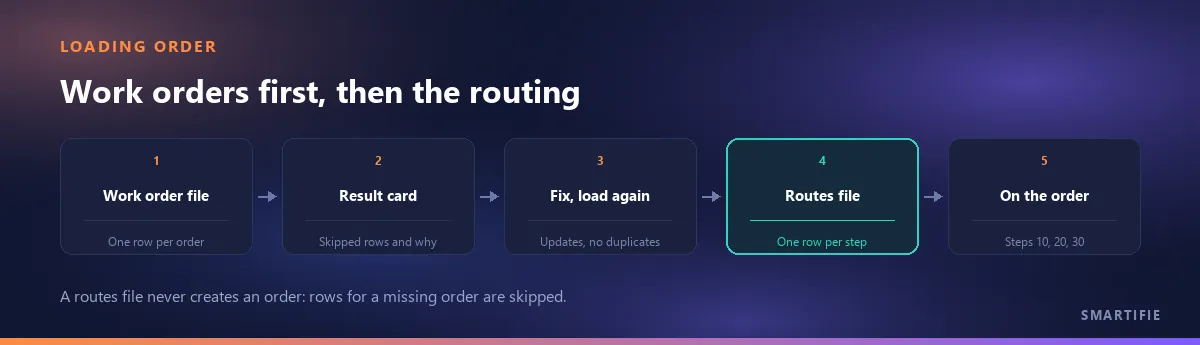
Reading the result card like a checklist is covered in the general checks article; the one thing specific to routing is this: the routes counter counts orders, not rows. “2 imported, 1 skipped” means two orders got their routing and one row was skipped.
What does a second import change, and what does it keep?
Because the list is loaded again every week, the real question is not the first import but the second. The rules:
| In the file | What happens |
|---|---|
| The same work order number | The order is updated, not duplicated. |
| A blank cell | The field on the record is emptied too (except the item name: if blank, the card's name is used). Dropping the column from the file has the same effect; send the same columns every week. |
| The work order file | The order's status and routing are not touched. |
| A smaller quantity on an order already started | The quantity cannot drop below what is already started; the row is skipped and the reason is shown. |
| A deleted (inactive) order | It is not updated; make it active in the list first. |
| The routes file | Rewrites that order's routing from scratch; a step that is not in the file is removed. One bad row in the group leaves that order's routing unchanged. |
| A routing that would drop a step already started | It is refused. |
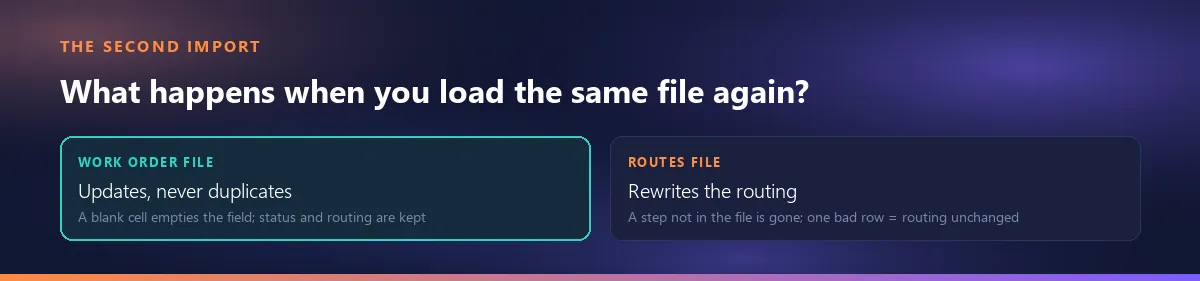
The rule to remember: to fix a routing, send all of that order's steps in the routes file; sending only the step you changed deletes the others.
In the video below you can watch both files, two deliberate mistakes and the corrected file being imported again, in a few minutes. The work orders, items and files in it are fictional test data.
Watch how it works
Real screens, start to finish.

Import Work Orders from Excel, Routing Included | Smartifie Start Stop
How to import work orders from Excel into Smartifie Start Stop, routing included: one file with a row per order, a second with a row per step, every skipped row listed with its reason, and the corrected file imported again without duplicates.
The video loads from YouTube when you press play.
The app in the video is Smartifie Start Stop, a shop-floor terminal app that imports work orders and routes from a spreadsheet. For a screen-by-screen walkthrough, the guide has the work orders screen, step by step.
The file is a bridge, not a connection: a weekly routine
If the list is loaded every week (a file taken from your scheduling program or ERP), the routine is simple: the same columns, the same numbers, orders first and routing second. Orders that changed are updated and new orders are added. An order that drops out of the file is not deleted: an import only adds and updates, and you close finished orders in the list yourself. This is a file import, not an automatic connection or sync between two systems. Every import happens when someone picks the file.
In short: one row per order; routing one row per step, in its own file; the number never changes; the three required columns are the work order number, the item code and a quantity above zero; an order with a routing lists its work centers on its row; orders first, routing second; a second import updates, but a blank cell empties the field and a routes file rewrites that order's routing.
If you want to try importing your own work order list, you can try Smartifie Start Stop free for 15 days, no credit card required. Work order and routing import are part of the trial.