
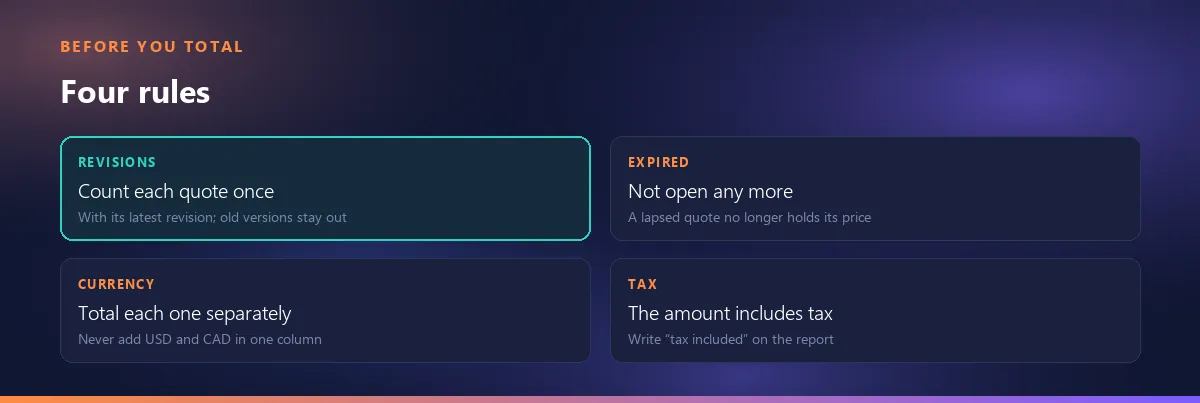
Month-end comes and someone asks the one question that matters: “How much do we have in open quotes?” Getting the quote list into Excel is the easy part. The hard part is whether the number you get by adding up the Amount column really describes the quotes that are still open. Usually it doesn't: a revised quote is counted twice, a quote whose validity has run out still says “sent”, US dollars and Canadian dollars end up in the same sum, and a tax-inclusive figure is set next to a sales target kept without tax. This article covers the four rules to apply before you hand that number over.
The short answer: exporting the filtered list to Excel takes one click; an honest open quotes figure depends on four rules: each quote is counted once (with its latest revision), an expired quote is not open, each currency is totaled on its own, and the report says on top that the figure includes tax.
First define “open”: which statuses count
An open quote is one that is with the customer and hasn't been answered yet. In Smartifie Quote's statuses that means two of them: Sent and Viewed. Viewed doesn't mean accepted; the customer has only opened the quote. Every other status either hasn't reached the customer yet or has already been decided.
| Status | Open? | Why |
|---|---|---|
| Draft | No | It hasn't been sent to anyone. |
| Awaiting approval | No | It is waiting for internal approval; the customer hasn't seen it. |
| Sent | Yes | It is with the customer, waiting for an answer. |
| Viewed | Yes | The customer opened it and hasn't answered yet. |
| Accepted | No | Decided; it belongs to orders now. |
| Rejected | No | Decided. |
| Expired | No | Its validity date has passed; the price no longer holds. |
| Superseded | No | A newer revision has replaced it. |
Adding Draft and Awaiting approval to the total inflates it: neither has reached the customer yet. In the file from the video, one of the largest amounts is Awaiting approval: the customer hasn't even seen that quote. We covered how a quote waiting for internal approval gets noticed in a separate article.
In Smartifie Quote, the Status filter on the quote list picks out each of these statuses on its own. It takes one status at a time: you can't select Sent and Viewed together. That is why it is easier to build the total of the two in Excel; how to do that is below.
An expired quote is not an open quote
Should expired quotes count as open? No. Once the validity date has passed, the price on the quote no longer binds you; if the customer says yes after that, you usually need a new revision at a current price. It has no place in the open quotes figure.
The problem with a hand-kept spreadsheet is that a row says “Sent” until somebody changes it. A quote past its validity date stays in the open total for weeks, simply because nobody noticed.
In Smartifie Quote, once a sent or viewed quote passes its validity date, the list shows it as Expired on its own. Nobody has to mark it: the status is worked out from the date, and the Excel file carries the same status. The upshot: filtering on Sent and Viewed already gives you only the quotes that are still valid. In the video, Status = Sent shows 4 quotes; the quote sent in September isn't among them, and turns up alone under Expired.
One detail: the file is a snapshot of the day you export it, and every status is written as it stands that day. If you total last week's file this week, quotes that expired in between still say “Sent”. Export again on the day you report the figure. Following up on expired quotes (reminders, a fresh quote) is a separate topic; here we only deal with how to count them.
A revised quote gets counted twice
In a hand-kept list every version is a row of its own. Revise a $120,000 quote down to $110,000 and two rows remain, so the total says $230,000, while the customer holds a single quote, the $110,000 one. The rule: each quote number is counted once, with its latest revision.
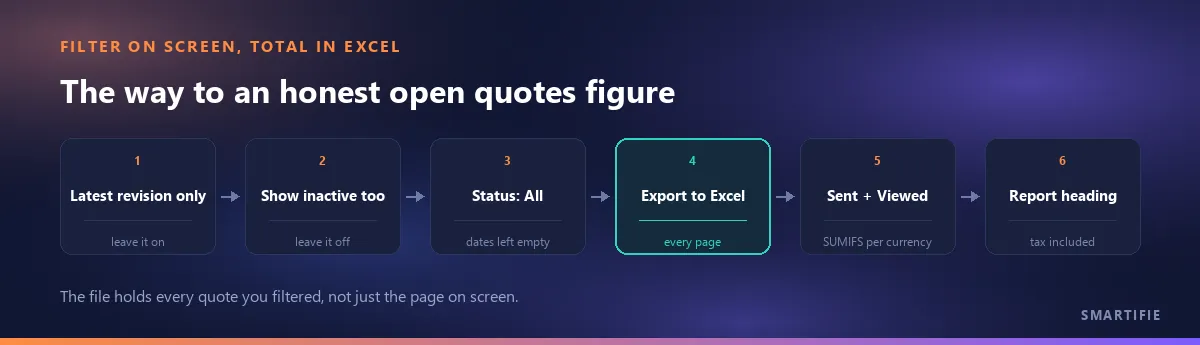
In Smartifie Quote the Latest revision only box is ticked by default. Untick it and the earlier versions join the list, and the Excel file, with the status Superseded; in the video, the earlier revision appears exactly like that when the box is unticked. Leave it ticked for the report.
To check the file: Quote No is column A and Revision is column B. If the same number appears twice, two versions have made it into the total. Put =COUNTIF(A:A,A2)>1 in an empty column and fill it down; any row that shows TRUE has a repeated number.
For the revision itself, see why the quote number stays when you revise.
Deleted quotes and “(Inactive)” rows
Does a deleted quote end up in the file? Not by default. In Smartifie Quote a deleted quote is kept on record but left off the list. With Show inactive too ticked, it appears with an Inactive tag, goes into the Excel file as well, and its Status cell carries a suffix such as “Sent (Inactive)”.
The rule: keep the box unticked for the report. Even if you forget, the formula below matches the status text exactly, so a “Sent (Inactive)” row isn't counted; still, glance down the Status column for “(Inactive)” before you total.
Different currencies don't go into one sum
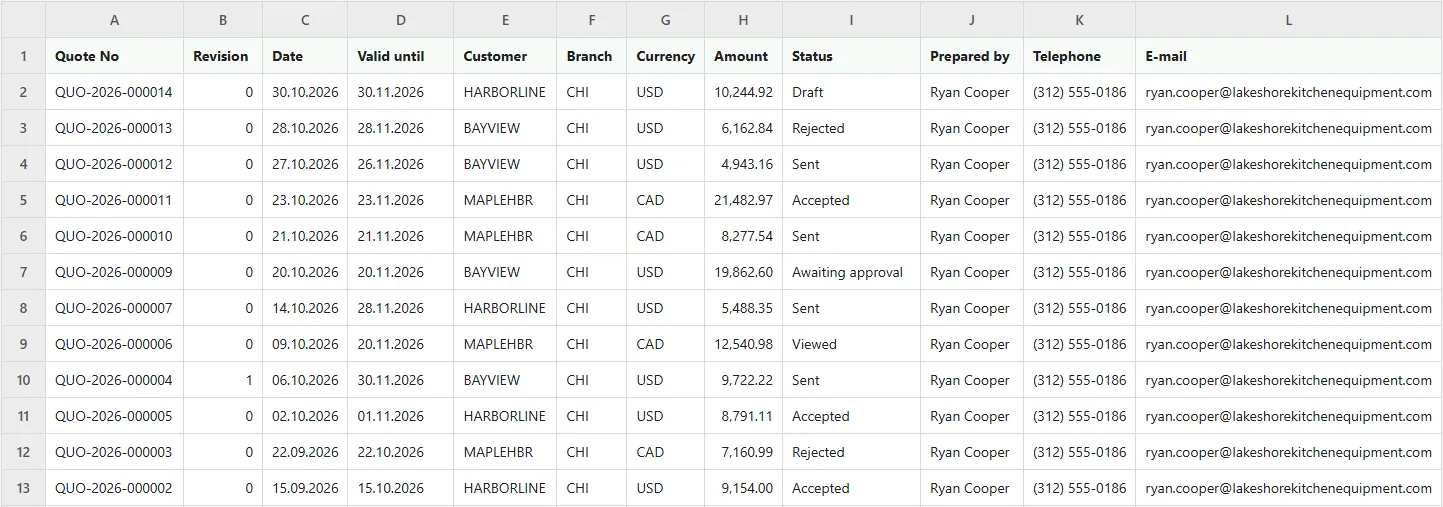
The Amount column in the file is in each quote's own currency; the Currency column sits next to it, and nothing is converted. That is the right choice, because the amount a customer accepts is the amount in the currency the quote was given in. But a plain SUM of the Amount column stops meaning anything: it turns 10,000 USD and 10,000 CAD into 20,000 of nothing in particular.
The method: a separate total for each currency. In the file, Currency is column G, Amount is H and Status is I. For the open amount in US dollars:
=SUMIFS(H:H,G:G,"USD",I:I,"Sent")+SUMIFS(H:H,G:G,"USD",I:I,"Viewed")Repeat it for the other currency. If you filtered by status first, one condition is enough and SUMIF does the job too. An easier route: build a PivotTable from the file with Currency in rows and Status as a filter.
The file in the video holds 12 quotes. A plain sum of the Amount column gives 123,831.68, mixing US and Canadian dollars and including drafts, rejected and accepted quotes. The open figure from the formula is two lines instead: 20,153.73 USD on three quotes and 20,818.52 CAD on two. The file was exported with September 15 – October 31 as the range; the two quotes outside it (the expired September quote and a draft dated November 2) aren't open, so the result is the same. The data is fictional.
If one single figure is a must, write the exchange rate you converted at, and its date, at the top of the report. Which rate you use is your call; what matters is that whoever reads the figure knows it. There is no currency filter on screen; the split is done in Excel. Different currencies inside a single quote are a different matter: line items in different currencies on one quote.
The amount includes tax: say so in the report heading
The Amount in the file is the quote's grand total: the subtotal plus tax, in the quote's currency. There is no separate column for the amount before tax. If your quotes carry no tax, the two are the same; if they do, read on.
This matters when the figure is compared with something else. Net revenue and most sales quotas are kept before tax. Put a tax-inclusive open quotes figure next to them and it looks bigger than it is, by the amount of the tax.
The rule: write “tax included, in each quote's currency” in the report heading. Don't try to strip the tax out with a formula: lines can carry different rates, and the file has no rate column. Saying on the quote itself whether tax is included is a separate topic: saying on the quote whether tax is included.
“Quotes we sent this month” and “quotes still valid” are different questions
In Smartifie Quote the From date and To date fields filter on the quote date, not on the validity or sending date. Both ends are included. If the start comes after the end, the screen says so: “The start date is later than the end date.”
That means two filters for two questions. “How many quotes did we send in October?”: From October 1, To October 31, Status All. “What do we have open today?”: dates left empty, statuses Sent and Viewed; the ones past their validity have already moved to Expired. Narrow the date range for the second question and you miss a quote written in September that is still valid.
To see which quotes run out this month, sort the file by the Valid until column in Excel; following them up is a job of its own.
Filter on screen, total in Excel: what we do here and what we don't
Watch how it works
Real screens, start to finish.

Export Quotes to Excel: Filter by Status and Date | Smartifie Quote
How to export quotes to Excel in Smartifie Quote: filter by status, customer and date, and the file holds every quote you filtered, not just the page on screen, with the amount as a number you can add up.
The video loads from YouTube when you press play.
In the video, Lakeshore Kitchen Equipment has 14 quotes. We switch to the table view and pick 10 rows per page; the list runs to two pages. Status = Sent gives 4 quotes, and Expired gives the one quote sent in September. Typing “Harbor” in the Customer field and picking HARBORLINE from the suggestions leaves 4 quotes. From September 15 to October 31: 12 quotes, 10 on the page, two pages again. Unticking Latest revision only brings back the earlier revision as Superseded; ticking Show inactive too shows the deleted quote with an Inactive tag. Then Export to Excel: 10 rows on screen, and the downloaded file holds 12 quotes in 12 columns. The companies and data in the video are fictional.
In other words, Export to Excel writes every quote the filters picked, not just the page on screen (up to 50,000 rows in one file). The file name is the same in every language, along the lines of quotes_20261102.xlsx; the column headings are in your interface language. A quote your role can't see isn't in the file either.
The Customer column holds the customer code, not the name. If you need names, export the Customers list with the same button and match on the code: VLOOKUP or XLOOKUP (XLOOKUP needs Excel 2021 or Microsoft 365).
What Smartifie Quote does here:
- A Status filter (including Expired, worked out from the date), customer (by code or name), a date range on the quote date, and a search on the quote number.
- The Latest revision only (on by default) and Show inactive too options.
- An Excel file with every quote you filtered: Amount as a number you can add up, a separate Currency column, and the preparer's name, phone and e-mail.
And, just as plainly, what it doesn't do:
- No bulk actions, saved filters or column choice; no sorting by clicking a column heading: the list always comes newest first.
- No currency filter and no total converted to one currency; no amount-before-tax column.
- No automatic or scheduled reports, and no transfer to a CRM or accounting program.
- It doesn't issue invoices: a quote and a proforma are not tax documents.
To close, in one line: filter on screen with the latest revision only and inactive quotes hidden, total only Sent and Viewed in Excel, one currency at a time, and say in the heading that the figure includes tax.
If you'd like to try it with your own quote list: a quoting tool that exports every quote you filtered to Excel. The cloud edition comes with a 15-day free trial.